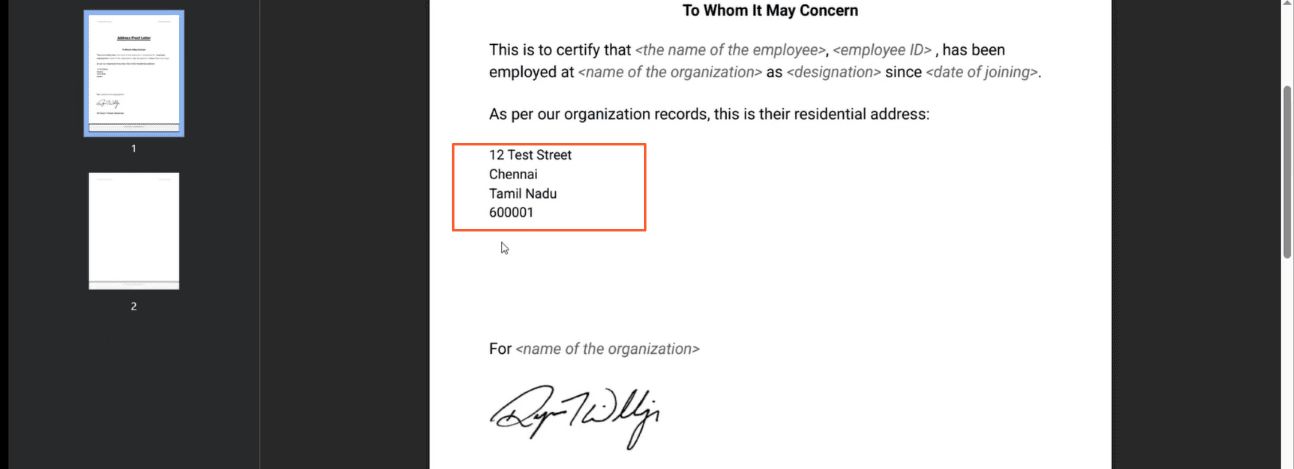
Add seperate address field for Mail merge
Here is our approach for How to add Seperate Address field for mail merge in Zoho People in a few simple steps.
Even a non-technical person can easily set it up in just a few steps.

Approach
We can add seperate address field for mail merge in Zoho People using the following steps.
1. Navigate to Manage Service
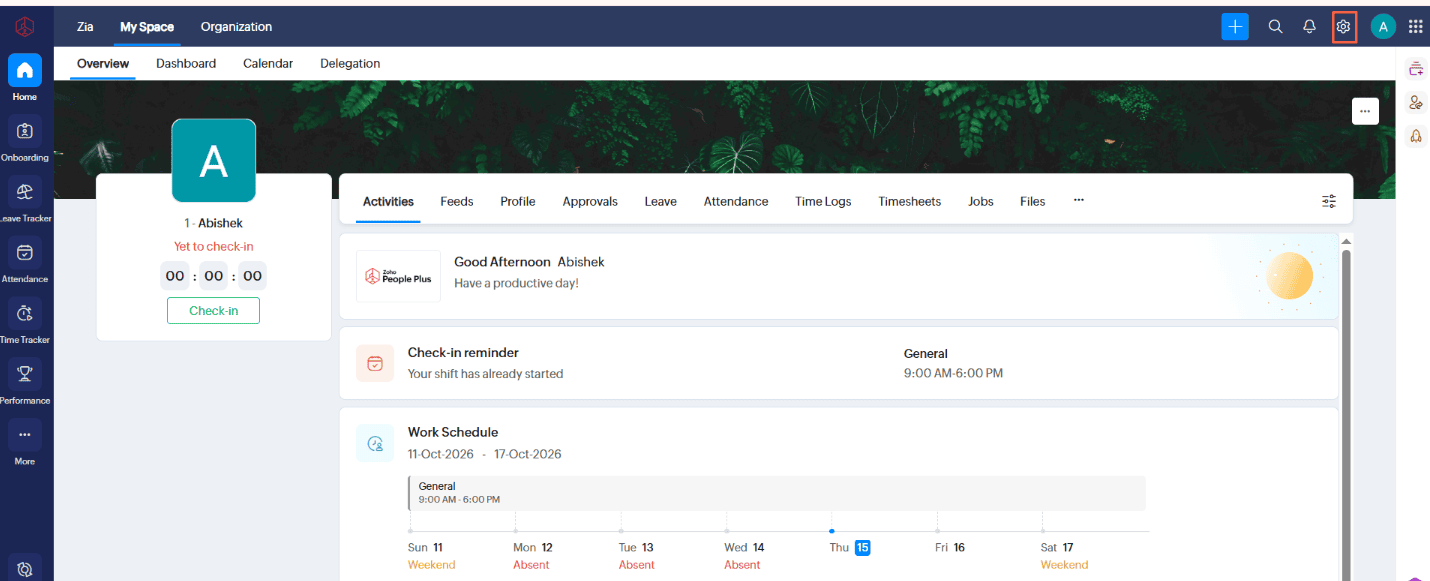
1.1 Click On "Settings"
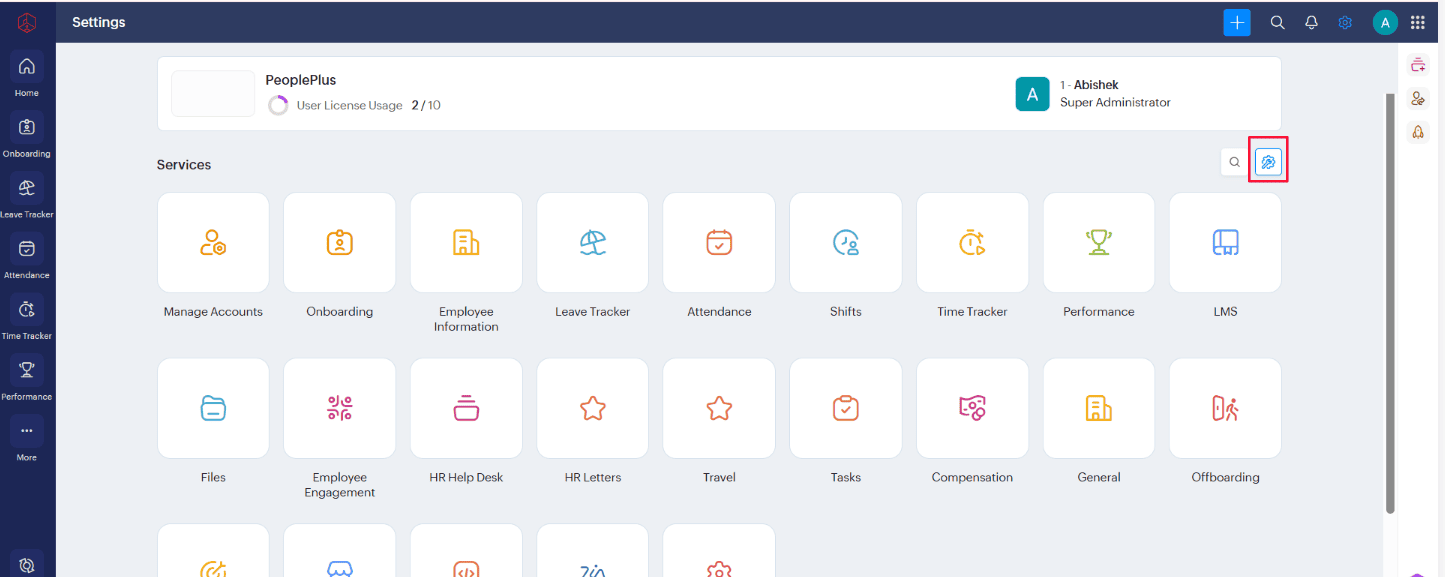
1.2 Click "Manage Service" Under Settings
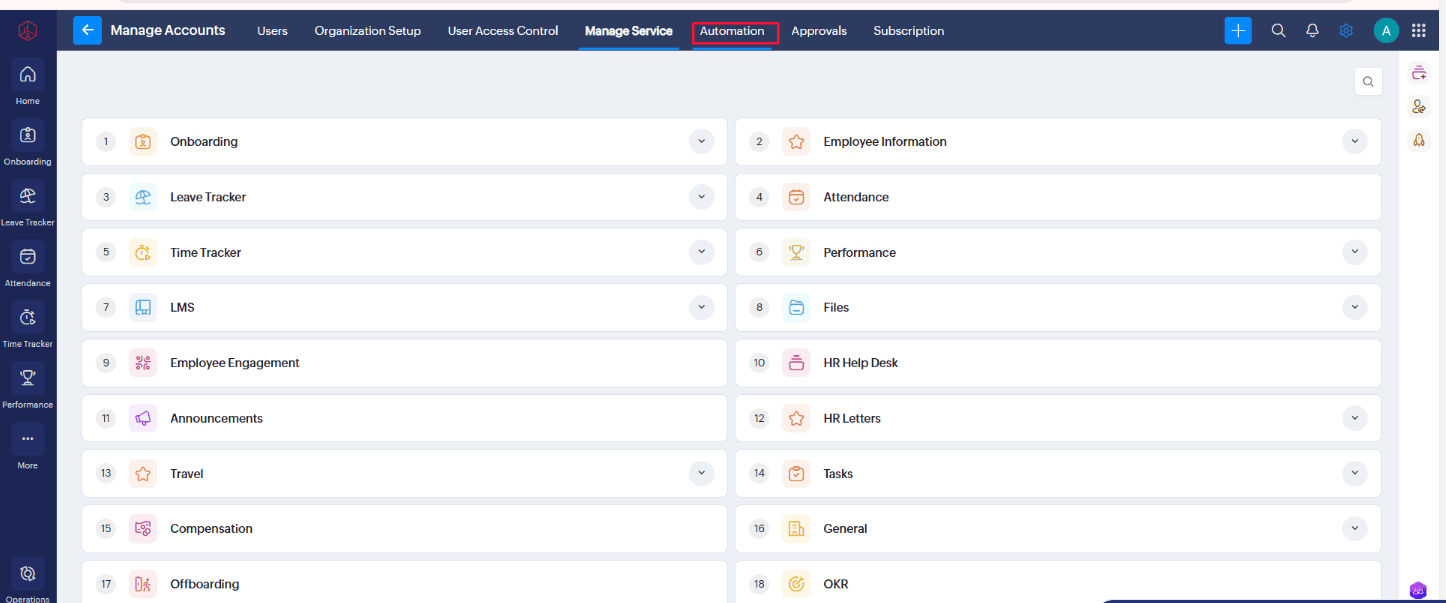
2. Navigate to Automation and Add Mail Merge Template
2.1 Click "Automation" Tab
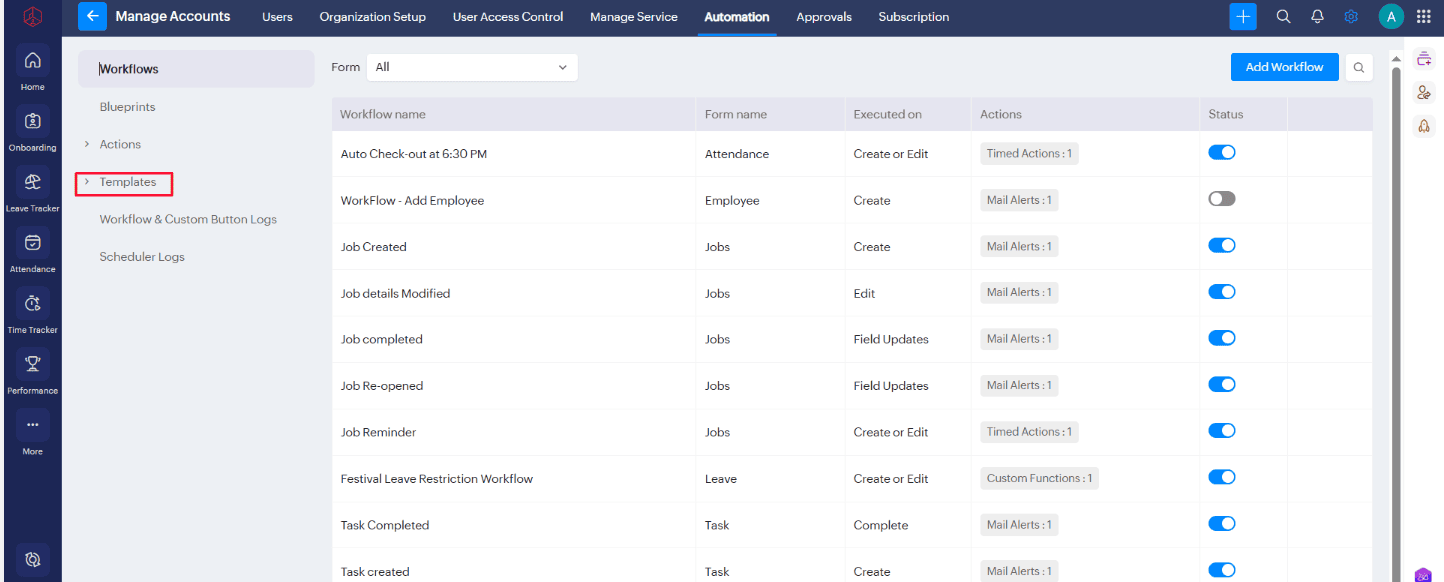
2.2 Click "Template" under Automation
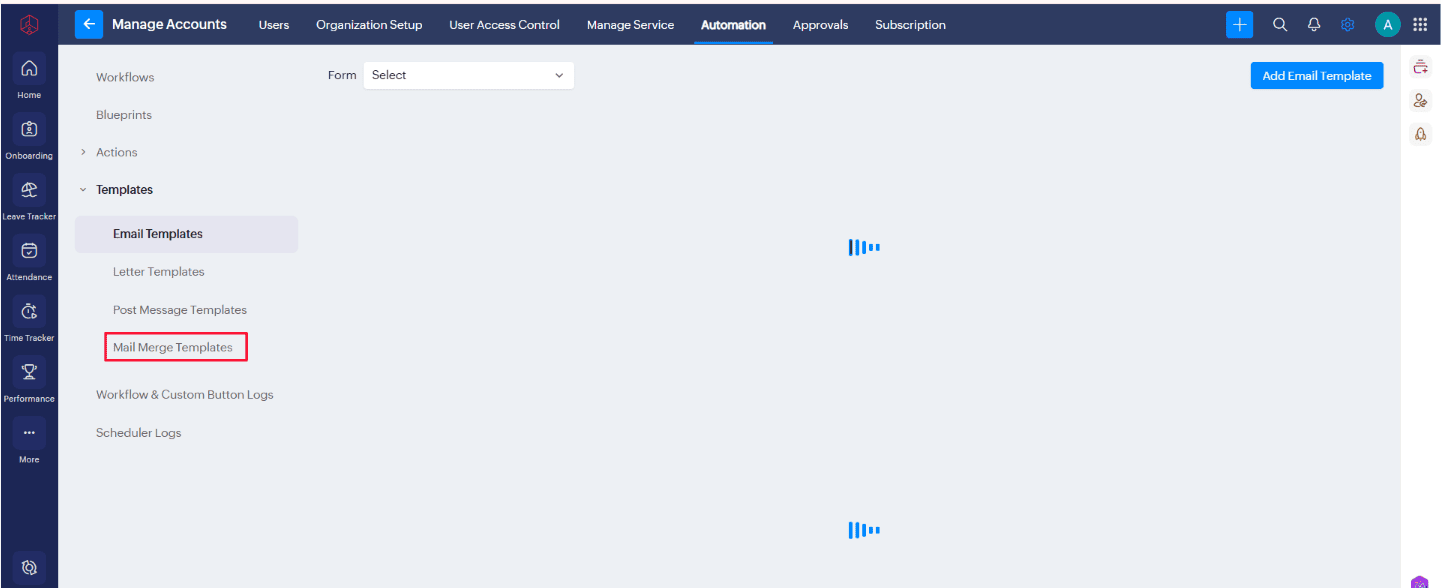
2.3 Click "Mail Merge Template" under Template
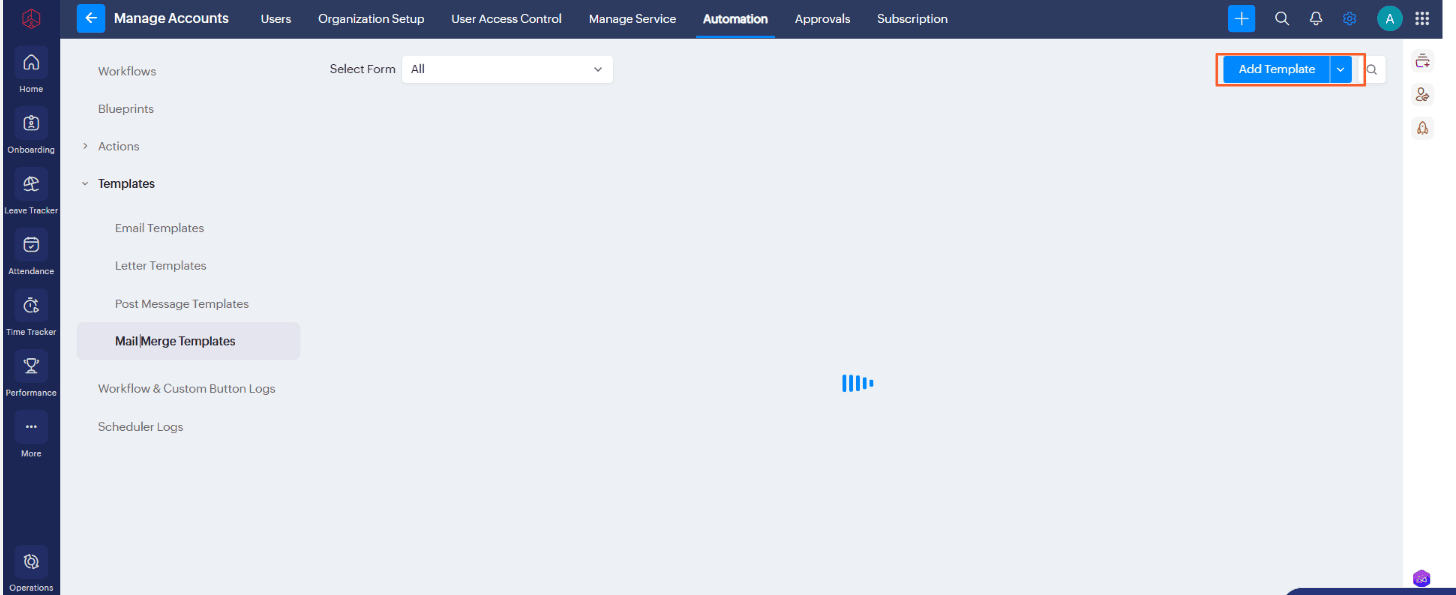
2.4 Click "Add Template"
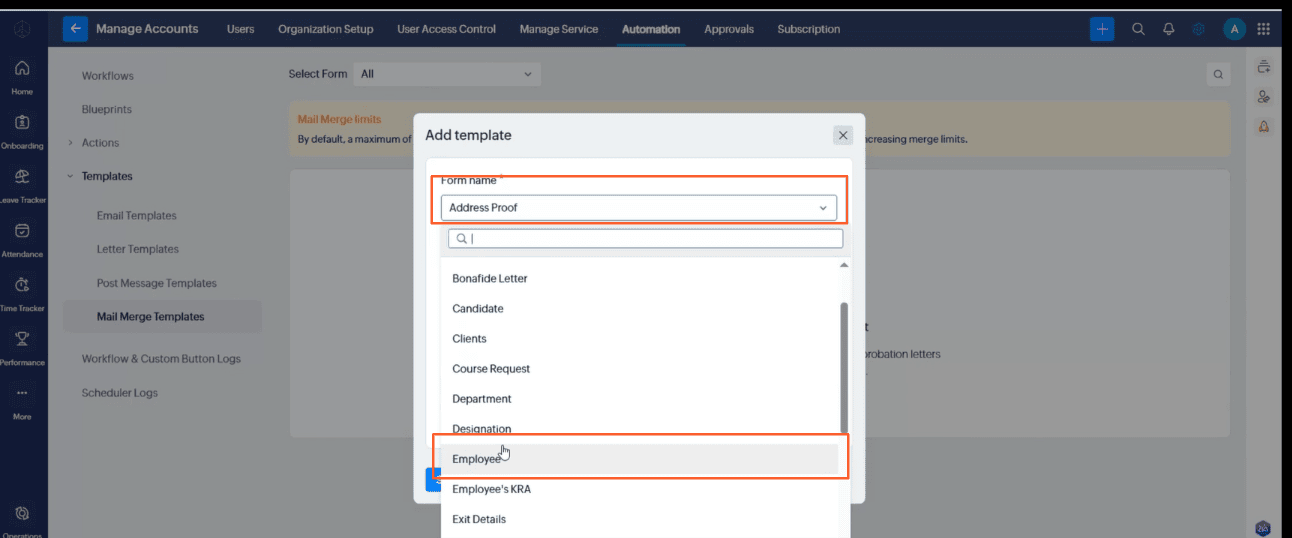
2.5 Choose the form name as "Employee" from the dropdown
2.6 Add Template Name
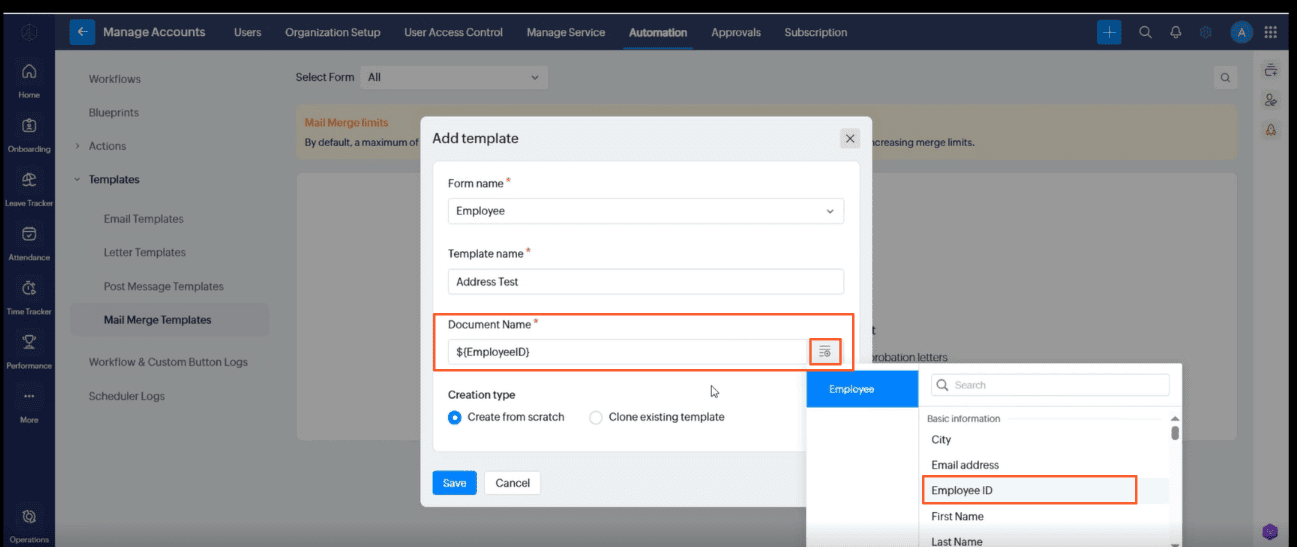
2.7 Ensure the creation type is set to "Create From Scartch" and Save it
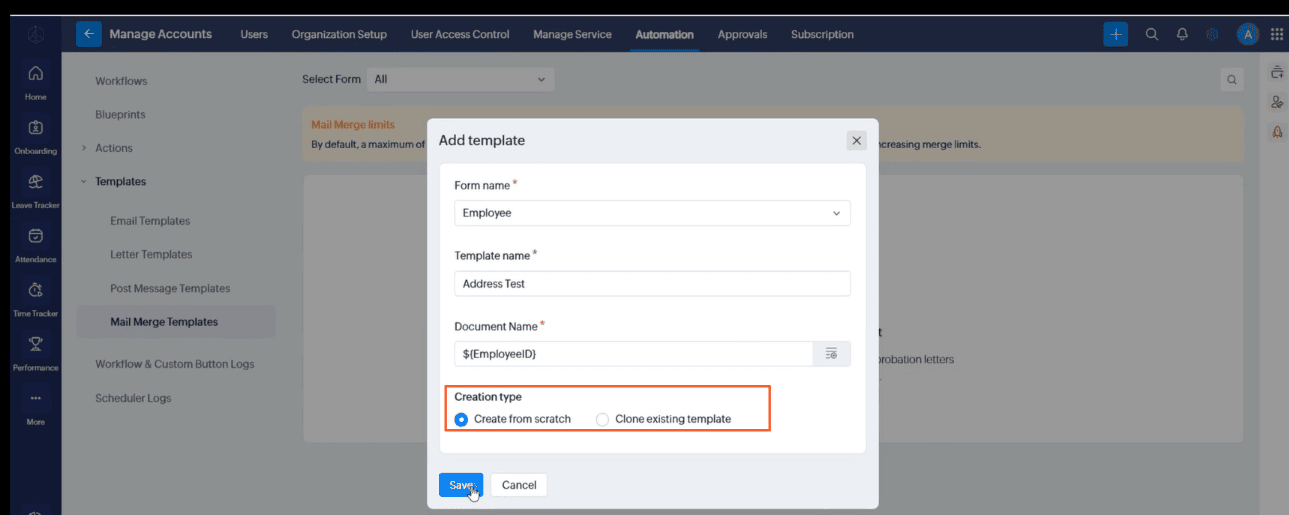
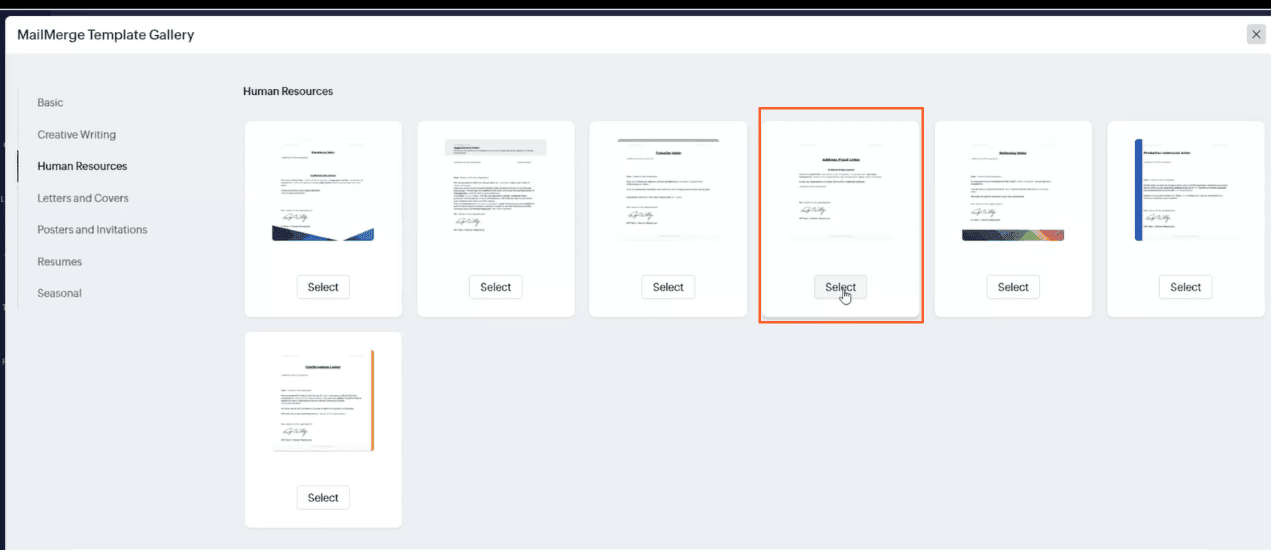
2.8 Choose a "Template" From the gallery
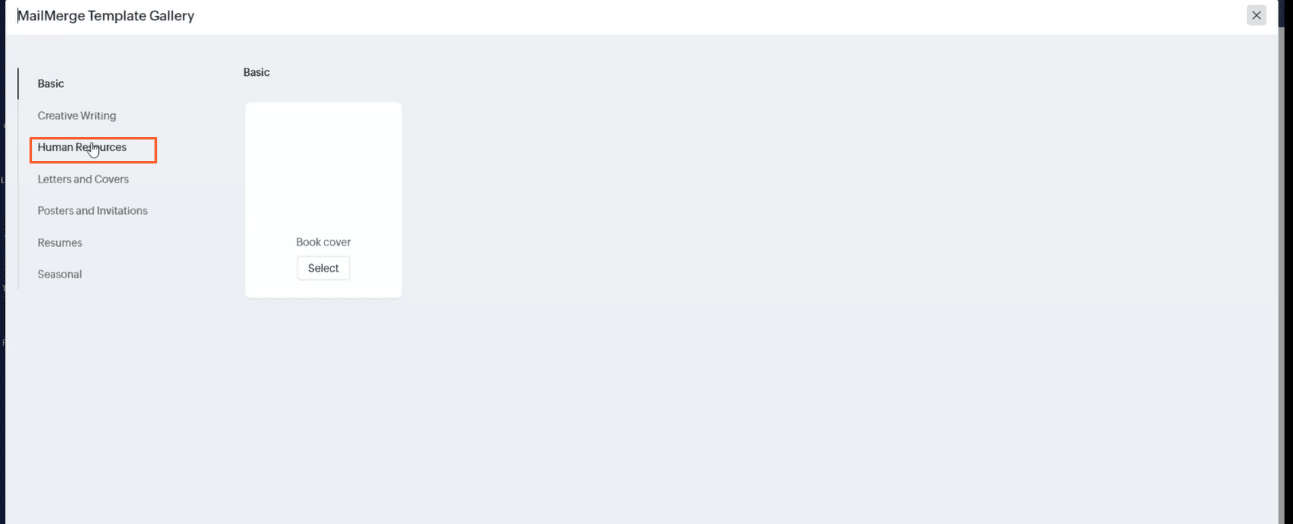
2.8 Such as Select "Address Proof" Under Human Resources
2.9 It will enter on to the writer editor of selected template
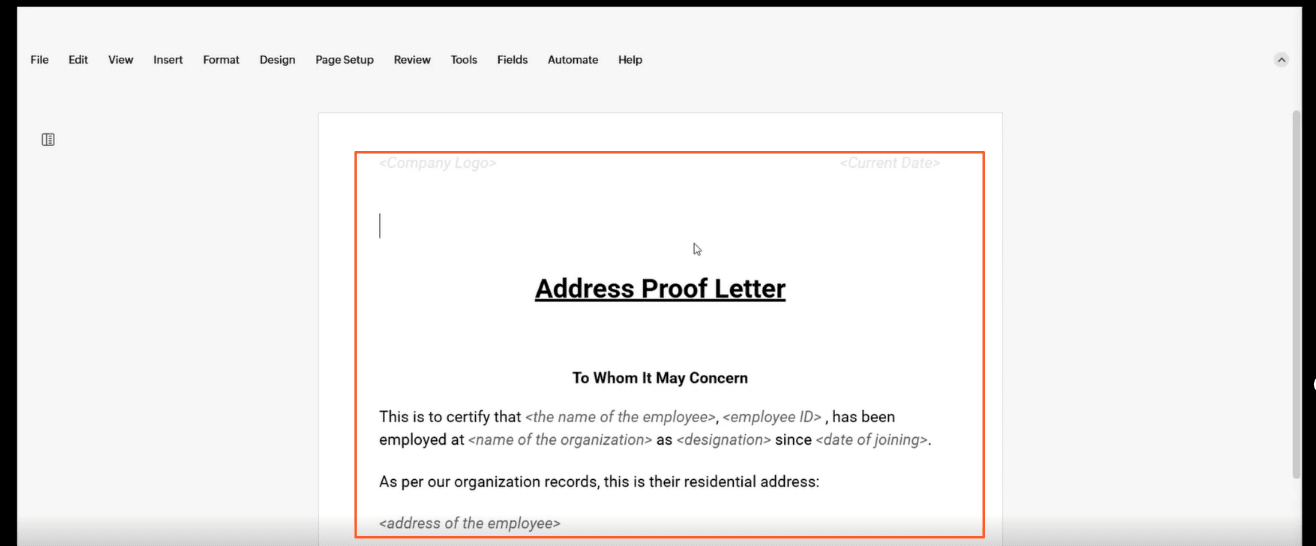
2.10 Remove the default Address
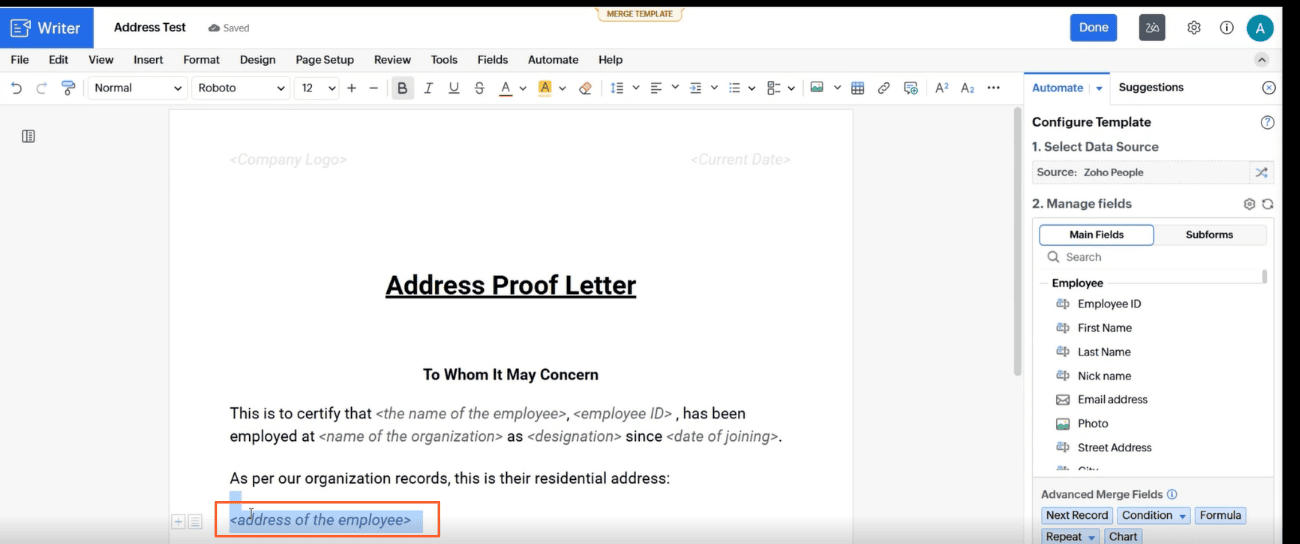
2.11 Go to "Main Fields Panel From right side end
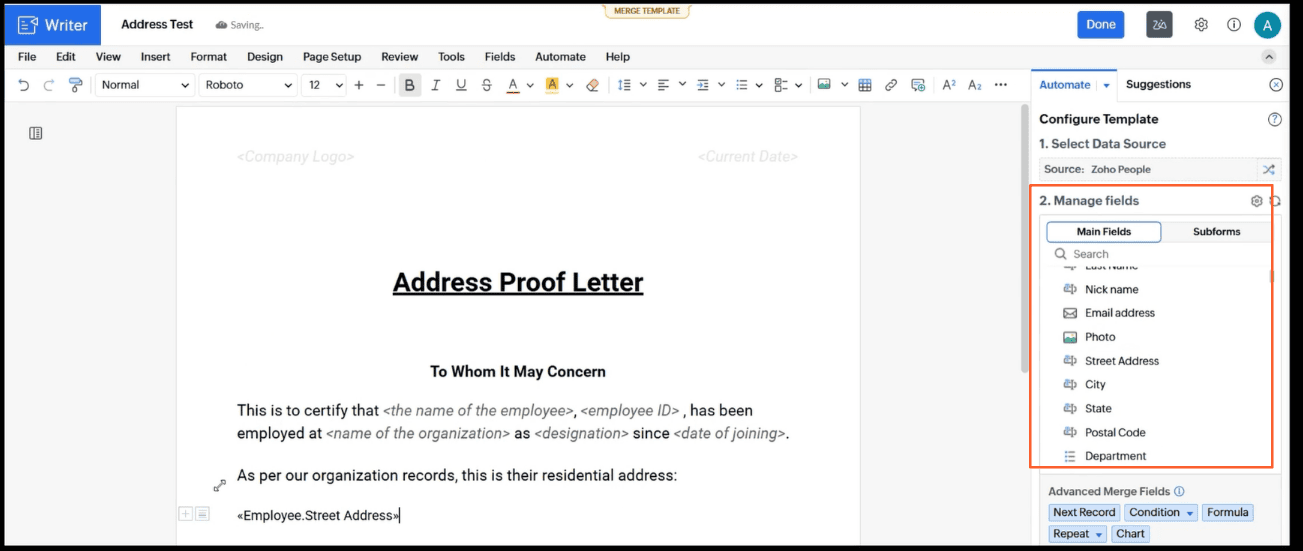
2.12 Insert Every Field Such as street Address city state postal code line by line
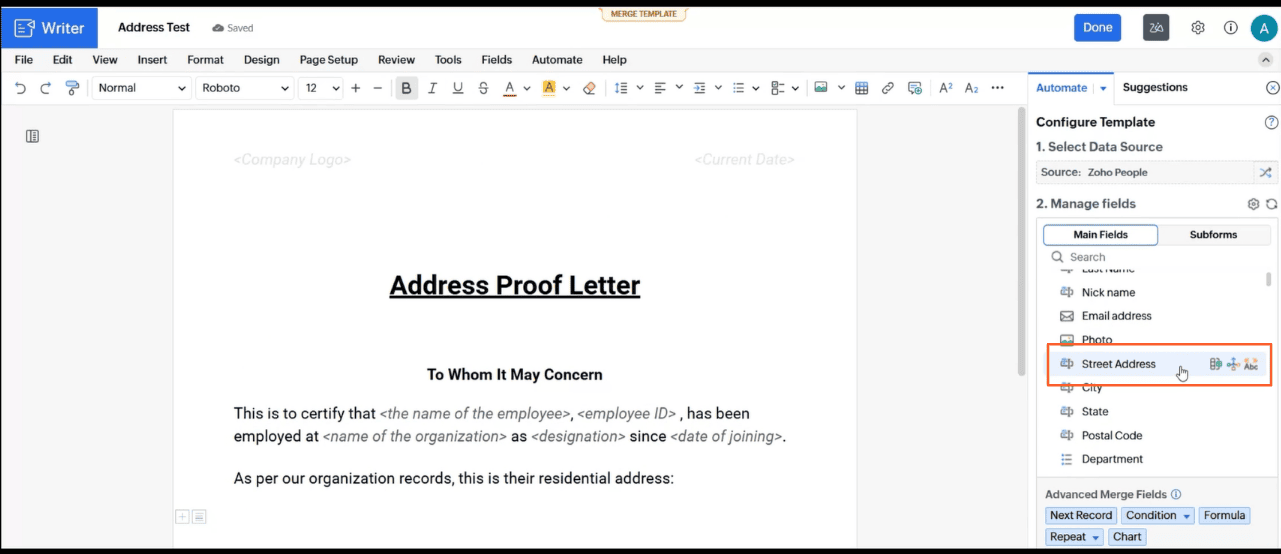
2.13 Click "Done"
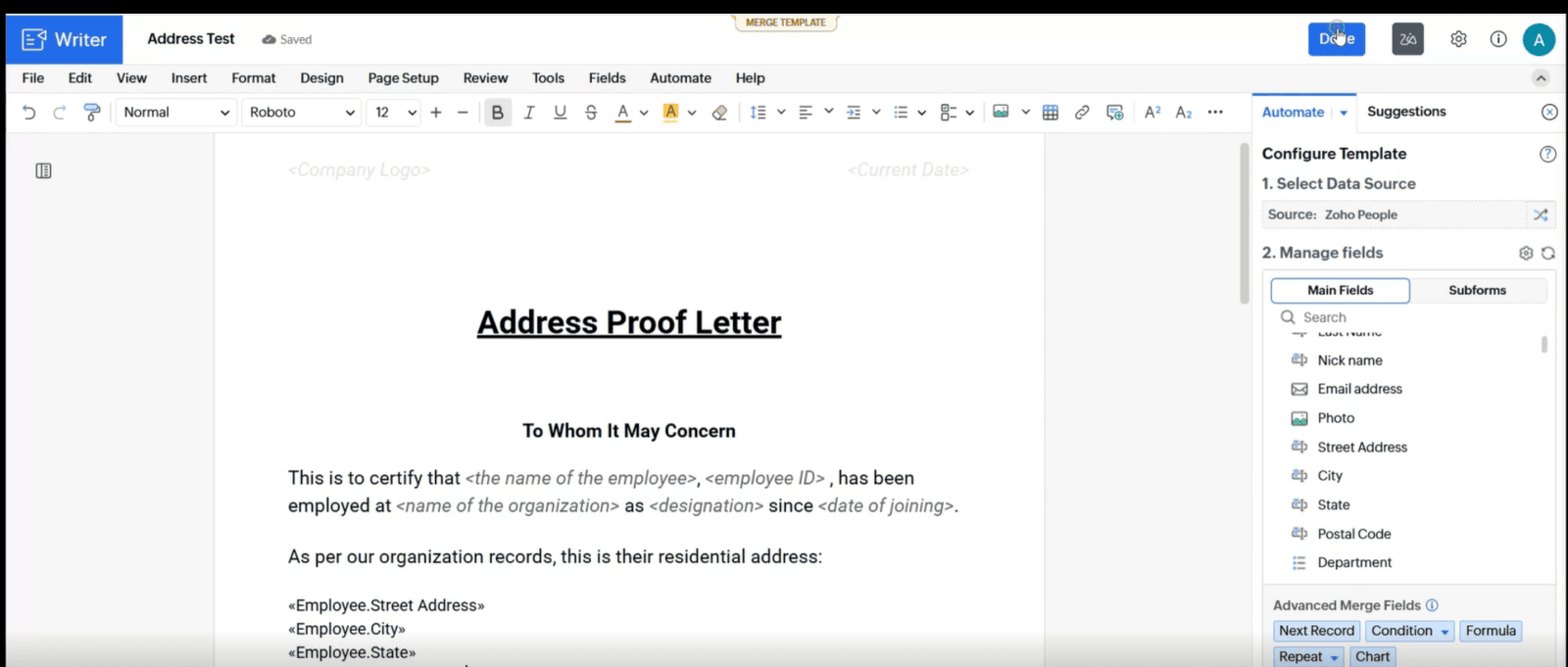
3.Verify The "Mail Merge Template"
3.1 Go to "Operations"
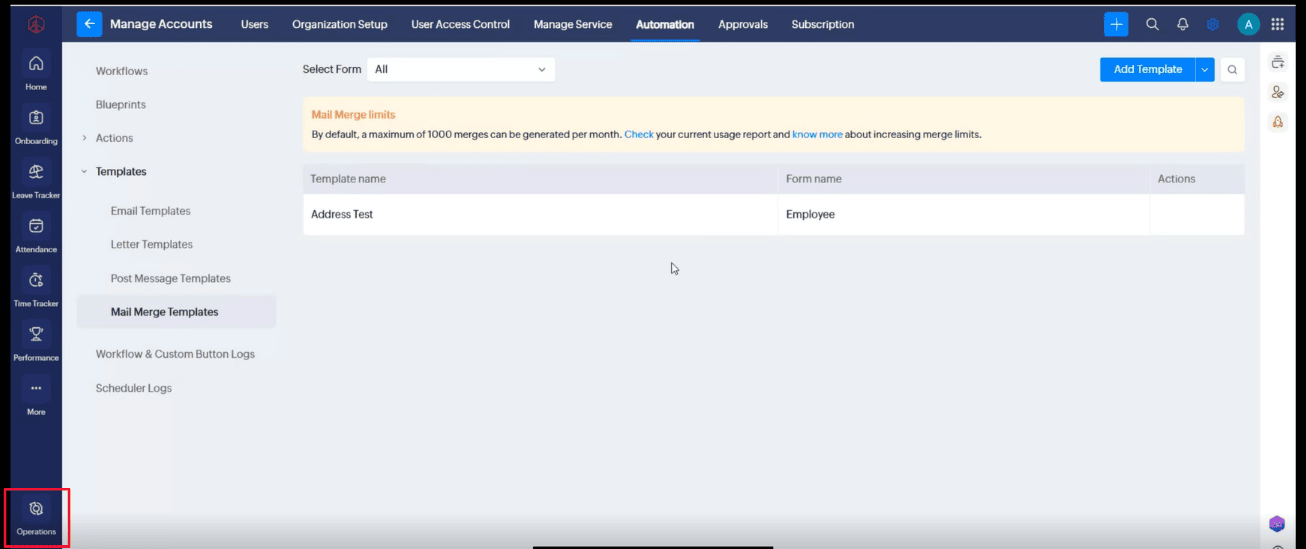
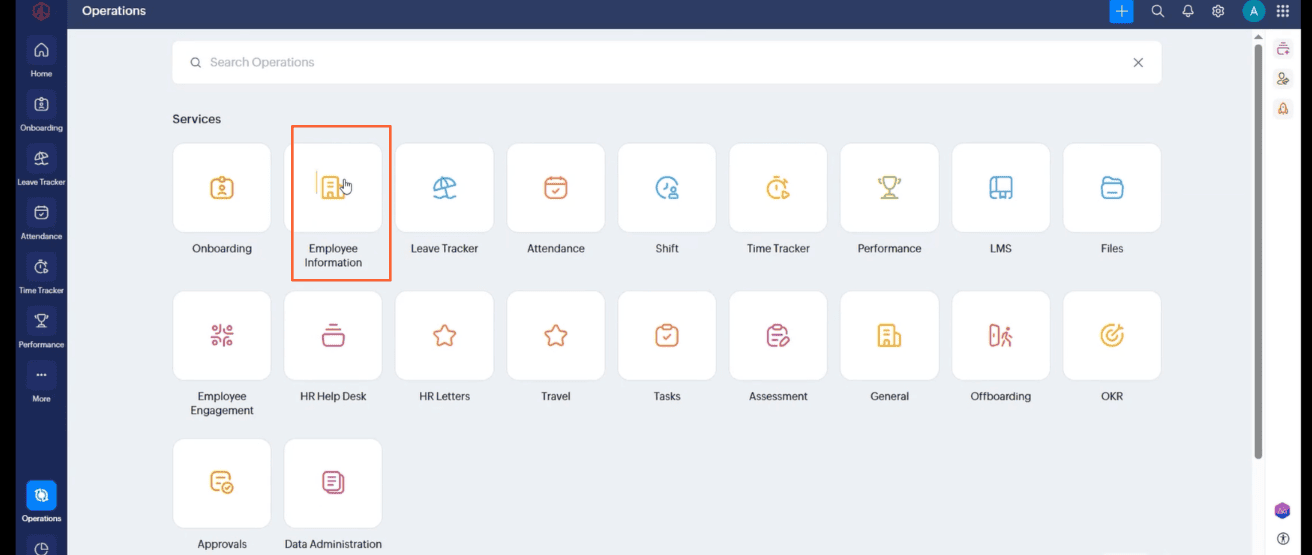
3.2 Click "Employee Imformation"
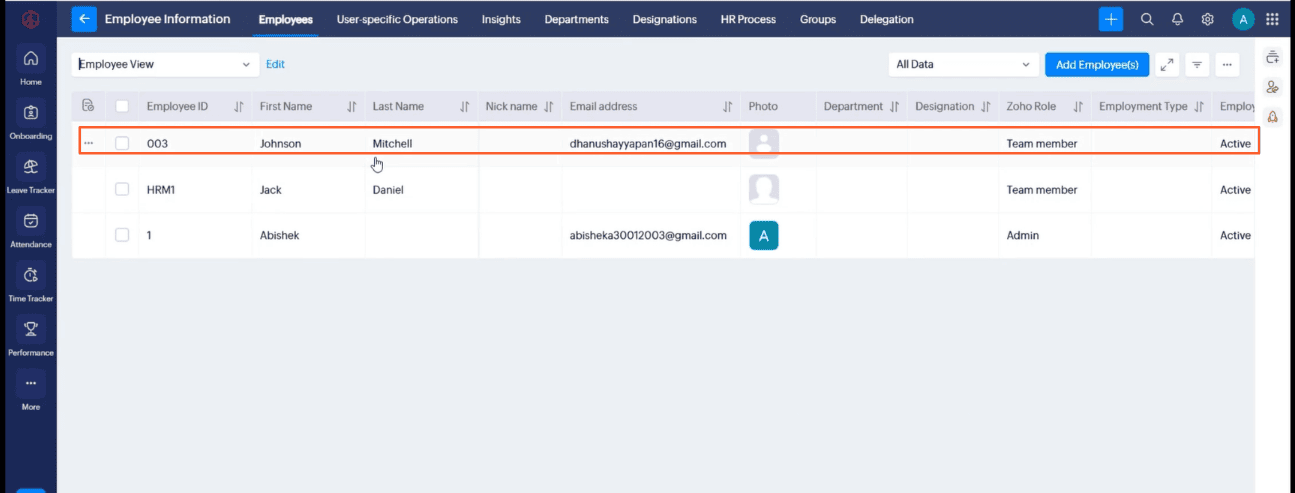
3.3 Select An Employee From Employee Imformation
3.4 Click "Menu"
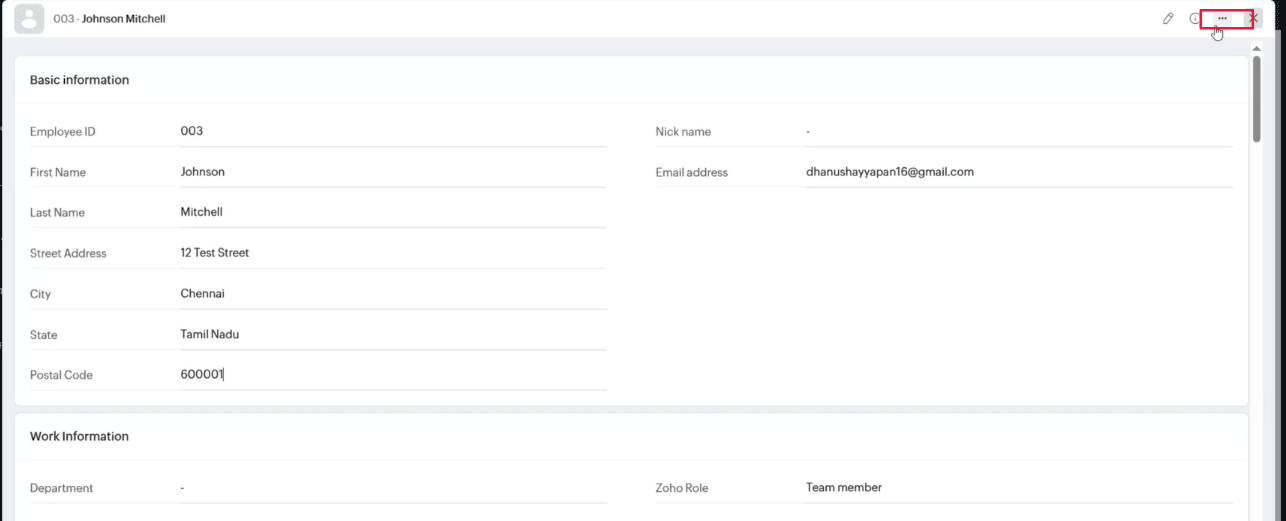
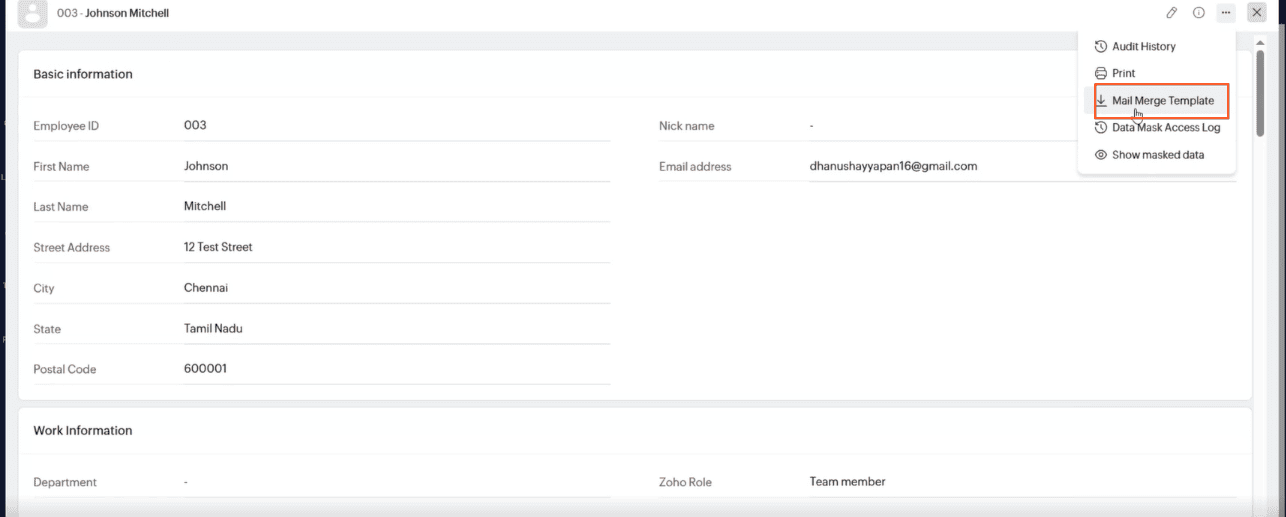
3.4 Click "Mail Merge Template" Under Menu
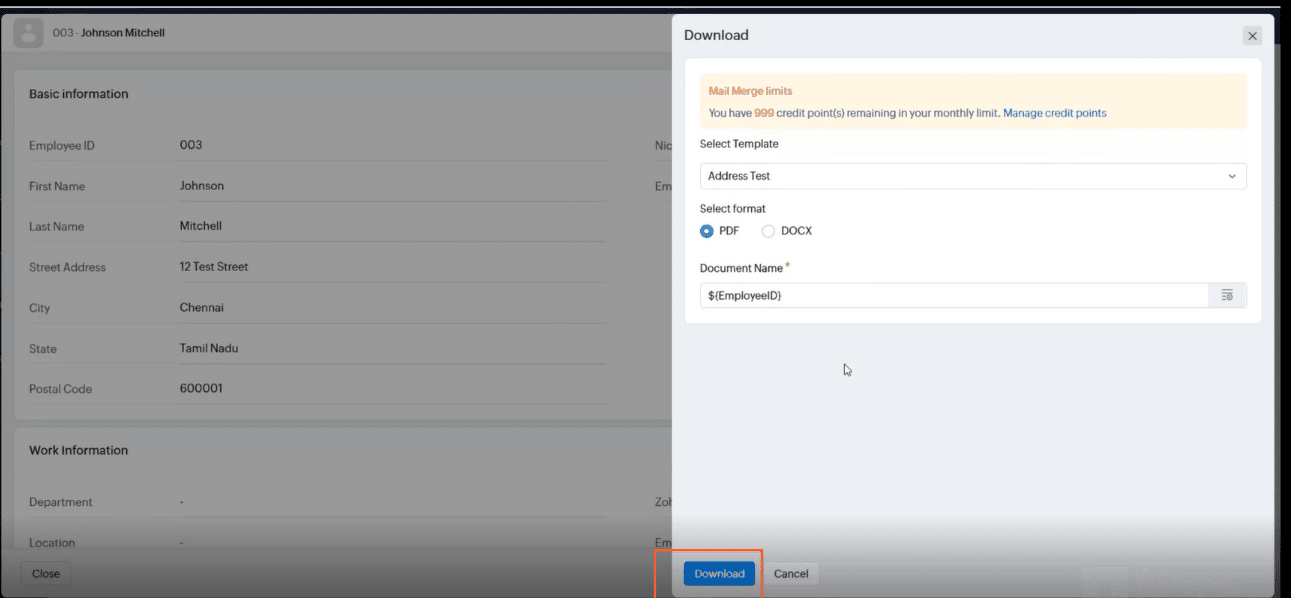
3.5 CLick "Download"
3.6 Click the "Downloaded Document" the address field was Mail Merged